backup_to_google_drive.md
Rama master · réplica de lectura del repositorio original.
# HowTo: upload TeslaLogger backups to Google Drive automaticaly
- connect via ssh to teslalogger
- Install *rclone* if not installed: `sudo apt-get install -y rclone`
- run `sudo rclone config` (sudo is necessary, because teslalogger runs as sudo also. rclone configs are user dependent)
- create connection (e.g.: "tl_backup") and click **ENTER**

- find list number for Google Drive, enter it and click **ENTER**
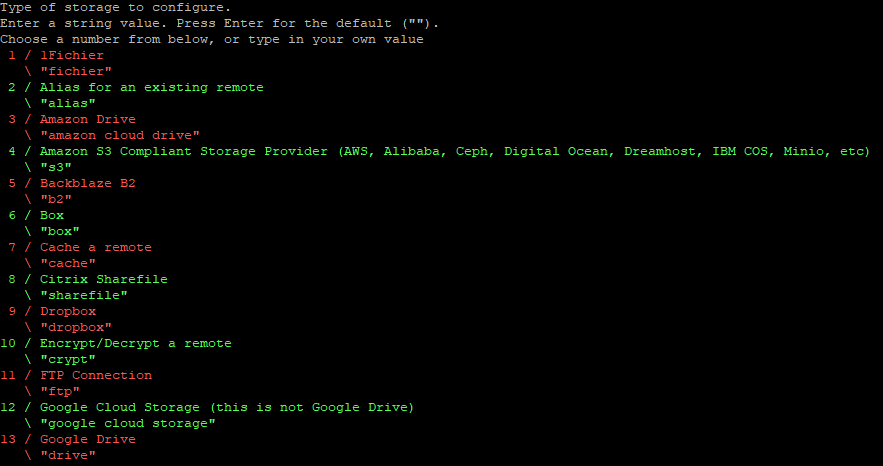

- Please use this HowTo for *client_id* and *client_secret* creation:
https://rclone.org/drive/#making-your-own-client-id
- **1** and **ENTER** for *scope* and **ENTER** for *root_folder_id*
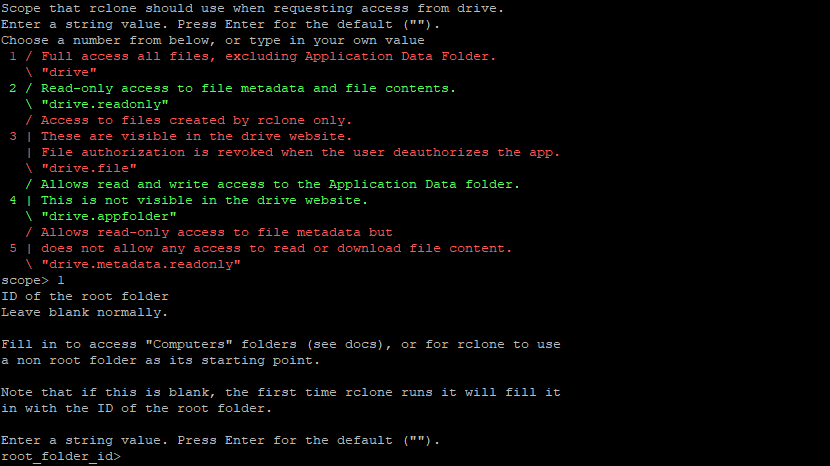
- **ENTER** for *service_account_file*, **n** for *Use auto config*
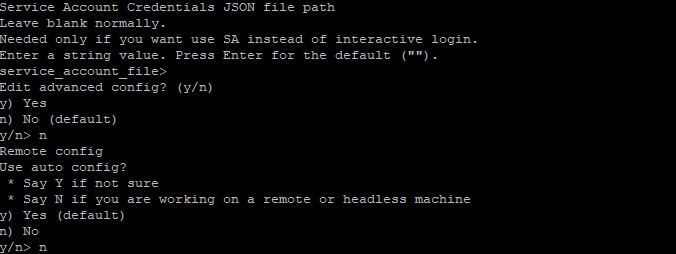
- Copy and paste diplayed link in browser. Login with you Google Account and allow new connection:

- key will be shown in browser, copy it with "copy-button", paste into command line window and press **ENTER** and one more **ENTER**:

- now you see a settings file with token, click **ENTER**
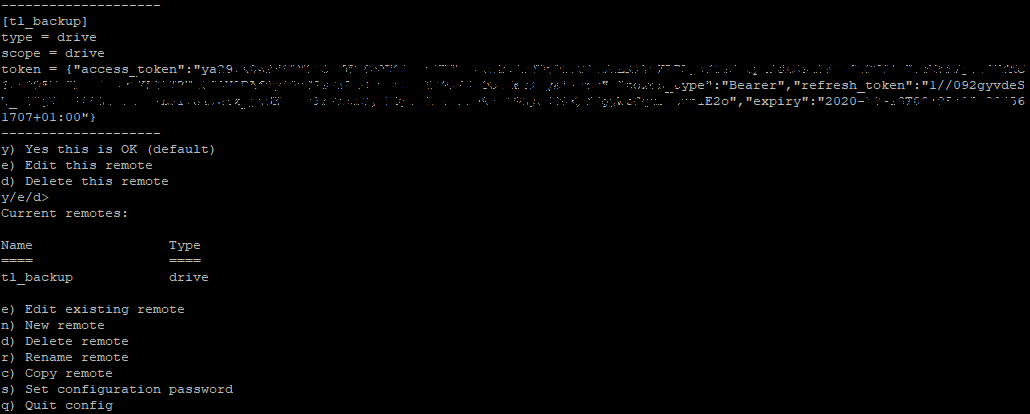
- end then **q** to exit setup
- open nano: `nano /etc/teslalogger/my-backup.sh` and paste this:
```
#!/bin/bash
/usr/bin/rclone copy --update --verbose --transfers 3 --contimeout 60s --timeout 300s --retries 3 --low-level-retries 10 --stats 1s "/etc/teslalogger/backup" "tl_backup:TeslaLoggerBackup"
```
with this command we will save all backup files via *tl_backup* connection we created in previous step into folder "TeslaLoggerBackup", change it according to you needs
- save file by clicking **CTRL+X**, then **y** and **ENTER**
- make it executable: `chmod +x /etc/teslalogger/my-backup.sh`
- try if it works: `sudo /etc/teslalogger/my-backup.sh`
- if you have alot of backups it will take a long time on first run... Success looks like this:
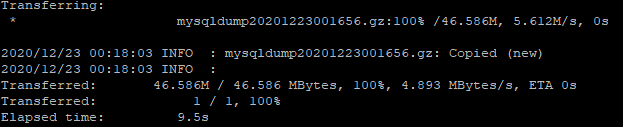
- now go back to nano: `nano /etc/teslalogger/my-backup.sh` and remove **--verbose**, than save file again (**CTRL+X**, **y**, **ENTER**)
- ***YOU ARE DONE*** :) After each new backup, TeslaLogger will run "my-backup.sh" automaticaly.