README.md
Rama main · réplica de lectura del repositorio original.
# Chorus
Chorus is a self-hosted AI engineering team. A long-running orchestrator turns a
repo goal into tickets, assigns role-based agents, runs the AI coding CLIs in
isolated worktrees, pushes ticket branches, and opens GitHub pull requests for
human review.
Chorus is **BYOAI: Bring Your Own AI**. You bring the AI subscriptions, accounts,
or API keys you already use. Chorus supplies the orchestration, dashboard,
worktrees, logs, cost/quota awareness, and PR workflow around Codex, Claude Code,
and Gemini CLI.
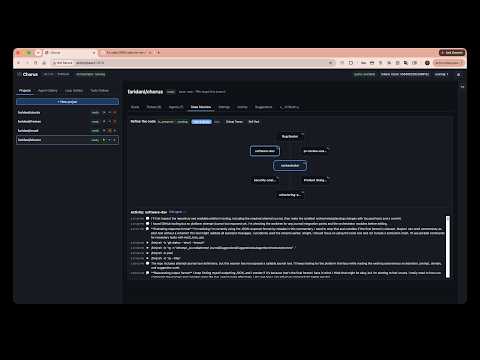
Watch the demo video on youtube
[](https://www.youtube.com/watch?v=XtsupeZIh5M)
## Why Containers Are Strongly Recommended
Agent CLIs are powerful by design. Chorus currently drives them with bypass modes
such as `codex exec --dangerously-bypass-approvals-and-sandbox`, Claude Code
permission bypass, and Gemini's yolo approval mode. That is useful for
unattended coding, but it is not something you should run directly on your
everyday host filesystem.
Run Chorus in a container when you can. The container keeps the dangerous agent
process tree away from the host while still giving it a persistent Chorus data
directory, GitHub auth, and BYOAI CLI credentials.
Bare-metal mode is available for operators who deliberately want it. Use it only
on a dedicated machine, VM, or account where AI agents can safely create files,
run commands, install packages, and modify cloned repositories.
## What You Need
- A GitHub account with access to the repositories Chorus will clone and open PRs
against.
- At least one AI backend account: Codex, Claude Code, or Gemini CLI.
- For container mode, a container runtime:
- **macOS:** Apple `container` from <https://github.com/apple/container>,
Docker Desktop, Podman, or OrbStack.
- **Linux:** Docker Engine or Podman.
- **Windows:** Docker Desktop or Podman Desktop with Linux containers enabled.
- For bare-metal mode, Node 22+, npm 10+, Git, GitHub CLI, and the AI CLI tools
you want Chorus to use.
The container image installs Node 22, Git, GitHub CLI, and the Codex, Claude, and
Gemini CLI frontends. Your accounts and tokens stay in a host-mounted container
home directory.
## Configuration
Optional, but recommended. The example omits `dataDir`, so Chorus uses the
default `~/.chorus` on bare metal and the launcher-provided container data path
in container mode:
```bash
cp chorus.config.example.json chorus.config.json
```
The launch scripts mount `chorus.config.json` into the container when it exists.
They also force the daemon to use container-safe defaults:
- `CHORUS_HOST=0.0.0.0` inside the container
- `CHORUS_PORT=7878` inside the container
- `CHORUS_DATA_DIR=/var/lib/chorus` inside the container
The dashboard is published on the host as `http://127.0.0.1:7878`.
## macOS Launch
For Apple `container`, install it and start its system service:
```bash
container system start
```
Build and run Chorus:
```bash
./deploy/mac/run-container.sh start
```
For Docker Desktop, Podman, or OrbStack on macOS, use the OCI launcher:
```bash
./deploy/linux/run-container.sh start
```
Authenticate inside the container:
```bash
./deploy/mac/run-container.sh shell
gh auth login
codex login
# Also authenticate whichever other BYOAI CLIs you use, such as claude or gemini.
exit
```
Open <http://127.0.0.1:7878>.
Useful commands:
```bash
./deploy/mac/run-container.sh logs
./deploy/mac/run-container.sh shell
./deploy/mac/run-container.sh stop
./deploy/mac/run-container.sh status
```
## Linux Launch
Install Docker or Podman, then run:
```bash
./deploy/linux/run-container.sh start
```
The script auto-selects Docker first, then Podman. To force one:
```bash
CHORUS_CONTAINER_RUNTIME=podman ./deploy/linux/run-container.sh start
```
Authenticate inside the container:
```bash
./deploy/linux/run-container.sh shell
gh auth login
codex login
# Also authenticate whichever other BYOAI CLIs you use, such as claude or gemini.
exit
```
Open <http://127.0.0.1:7878>.
Useful commands:
```bash
./deploy/linux/run-container.sh logs
./deploy/linux/run-container.sh shell
./deploy/linux/run-container.sh stop
./deploy/linux/run-container.sh status
```
## Windows Launch
Install Docker Desktop or Podman Desktop and make sure Linux containers are
enabled. From PowerShell:
```powershell
.\deploy\windows\run-container.ps1 start
```
If PowerShell blocks local scripts, allow local signed scripts for your user:
```powershell
Set-ExecutionPolicy -Scope CurrentUser RemoteSigned
```
Authenticate inside the container:
```powershell
.\deploy\windows\run-container.ps1 shell
gh auth login
codex login
# Also authenticate whichever other BYOAI CLIs you use, such as claude or gemini.
exit
```
Open <http://127.0.0.1:7878>.
Useful commands:
```powershell
.\deploy\windows\run-container.ps1 logs
.\deploy\windows\run-container.ps1 shell
.\deploy\windows\run-container.ps1 stop
.\deploy\windows\run-container.ps1 status
```
## Persistent Data
The scripts keep state outside the image so rebuilds do not erase your setup:
| Platform | Chorus data | Container home / CLI auth |
|---|---|---|
| macOS/Linux | `~/.chorus-container/data` | `~/.chorus-container/home` |
| Windows | `%USERPROFILE%\.chorus-container\data` | `%USERPROFILE%\.chorus-container\home` |
Override these with:
```bash
CHORUS_DATA_DIR_HOST=/path/to/data CHORUS_HOME_DIR_HOST=/path/to/home ./deploy/linux/run-container.sh start
```
On Windows:
```powershell
$env:CHORUS_DATA_DIR_HOST="D:\chorus\data"
$env:CHORUS_HOME_DIR_HOST="D:\chorus\home"
.\deploy\windows\run-container.ps1 start
```
## BYOAI Credentials
Preferred setup is interactive login inside the container shell:
```bash
gh auth login
codex login
```
You can also pass provider tokens from the host environment before launch. The
scripts inherit these variables when they are set:
- `OPENAI_API_KEY`
- `ANTHROPIC_API_KEY`
- `GEMINI_API_KEY`
- `GOOGLE_API_KEY`
- `GITHUB_TOKEN`
- `GH_TOKEN`
To skip installing the AI CLIs during image build because you maintain your own
image layer:
```bash
CHORUS_INSTALL_AI_CLIS=false ./deploy/linux/run-container.sh start
```
## Using Chorus
1. Open the dashboard at <http://127.0.0.1:7878>.
2. Click **New project**.
3. Paste a GitHub repository URL.
4. Chorus clones the repo, finds or asks for `docs/SPEC.md`, generates tickets,
and starts assigning work to agents.
5. Agents work on per-ticket branches in isolated worktrees.
6. Chorus pushes completed ticket branches and opens GitHub PRs.
7. A human reviews and merges the PR. Chorus never merges to `main` by itself.
## Runtime Controls
All platform scripts support the same actions:
```text
start Build the image and start a fresh Chorus container.
restart Same as start.
shell Open an interactive shell inside the running container.
logs Follow daemon logs.
stop Stop the container.
rm Remove the container.
status Show runtime status.
```
Set `CHORUS_PORT` to publish a different host port:
```bash
CHORUS_PORT=8787 ./deploy/linux/run-container.sh start
```
## Bare-Metal Launch
Use bare-metal mode when you explicitly want Chorus and its AI agents to run
directly on the host. This is the simplest path operationally, but it gives the
AI CLI process tree access to the same OS account, filesystem permissions, SSH
keys, package managers, and network access that you have.
Recommended bare-metal setup:
- Run on a dedicated machine, VM, or separate OS account.
- Keep `host` set to `127.0.0.1` unless the dashboard is behind a trusted
private network.
- Keep `terminal.allowRemoteClients` disabled unless you understand that it
exposes an interactive shell through the dashboard.
- Do not point Chorus at repositories or directories you are not willing to let
AI agents modify.
### macOS Bare Metal
Install prerequisites with Homebrew or your preferred package manager:
```bash
brew install node git gh
npm install -g @openai/codex@latest @anthropic-ai/claude-code@latest @google/gemini-cli@latest
```
Authenticate the local tools:
```bash
gh auth login
codex login
# Run claude and gemini once if you want those BYOAI backends available.
claude
gemini
```
Build and launch Chorus:
```bash
cp chorus.config.example.json chorus.config.json
# Optional: edit chorus.config.json. Prefer "host": "127.0.0.1" for bare metal.
npm install
npm run build
npm --workspace @chorus/dashboard run build
node packages/daemon/dist/main.js
```
Open <http://127.0.0.1:7878>.
For 24/7 macOS operation, edit `deploy/com.chorus.daemon.plist` with your local
paths, then install it:
```bash
cp deploy/com.chorus.daemon.plist ~/Library/LaunchAgents/
launchctl load ~/Library/LaunchAgents/com.chorus.daemon.plist
```
### Linux Bare Metal
Install Node 22+, npm 10+, Git, and GitHub CLI with your distro package manager
or the official upstream installers. Then install the AI CLIs:
```bash
npm install -g @openai/codex@latest @anthropic-ai/claude-code@latest @google/gemini-cli@latest
```
Verify the local toolchain:
```bash
node --version
npm --version
git --version
gh --version
codex --version
```
Authenticate:
```bash
gh auth login
codex login
# Run claude and gemini once if you want those BYOAI backends available.
claude
gemini
```
Build and launch:
```bash
cp chorus.config.example.json chorus.config.json
# Optional: edit chorus.config.json. Prefer "host": "127.0.0.1" for bare metal.
npm install
npm run build
npm --workspace @chorus/dashboard run build
node packages/daemon/dist/main.js
```
Open <http://127.0.0.1:7878>.
### Windows Bare Metal
Install Node.js, Git, and GitHub CLI with Windows Package Manager or your
preferred installers:
```powershell
winget install OpenJS.NodeJS.LTS Git.Git GitHub.cli
npm install -g @openai/codex@latest @anthropic-ai/claude-code@latest @google/gemini-cli@latest
```
Restart PowerShell so the new tools are on `PATH`, then authenticate:
```powershell
gh auth login
codex login
# Run claude and gemini once if you want those BYOAI backends available.
claude
gemini
```
Build and launch:
```powershell
Copy-Item chorus.config.example.json chorus.config.json
# Optional: edit chorus.config.json. Prefer "host": "127.0.0.1" for bare metal.
npm install
npm run build
npm --workspace @chorus/dashboard run build
node packages/daemon/dist/main.js
```
Open <http://127.0.0.1:7878>.
## Development Commands
For code changes and tests:
```bash
npm install
npm run build
npm --workspace @chorus/dashboard run build
node packages/daemon/dist/main.js
```
Run tests:
```bash
npm test
python3 -m unittest discover -s tests
```
## Architecture
Chorus is a TypeScript monorepo:
```text
packages/core Shared types, config, events, tools, agents
packages/db SQLite migrations and repositories
packages/backends Codex, Claude, and Gemini CLI adapters
packages/orchestrator Ticket dispatch, agent runs, reconciliation, PR flow
packages/web Fastify API, WebSocket feed, dashboard serving
packages/daemon Composition root and long-running process
apps/dashboard React/Vite control panel
agents Built-in role templates
```
There is also an agent-generated Python implementation under `src/chorus/` and
`tests/` kept for reference and review.
## Open Source and Hosted
Chorus is open source. You can run it yourself with your own container runtime
and BYOAI accounts. If you do not want to maintain a long-running machine,
container runtime, upgrades, or agent credentials, use the paid managed
infrastructure option for a ready-deployed Chorus environment.